You may add a vehicle or a location to a policy.
Access the policy to be modified using search.
In the action menu, select Continue this transaction or Endorse.
In the Commercial Auto menu, click Covered Autos.
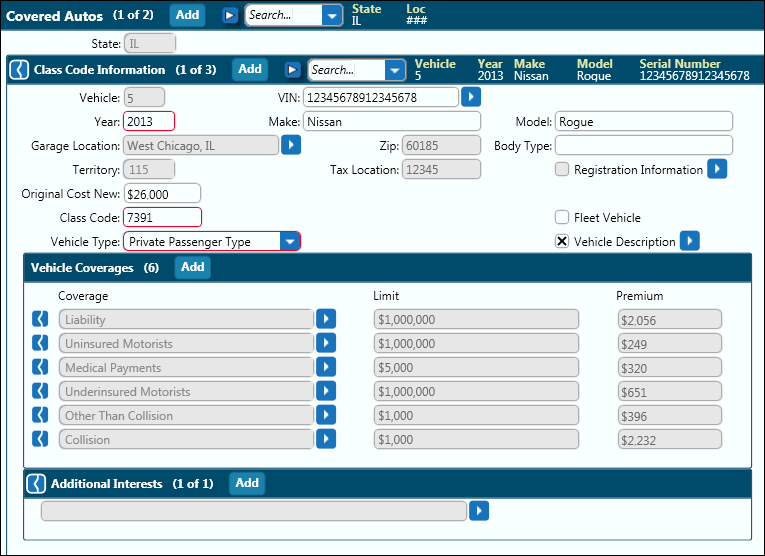
Complete the required fields under Class Code Information for the added vehicle. Upon completion, the applicable coverages will automatically transfer to the vehicle from the Auto Global Coverages screen.
If any additional coverages are required for an individual vehicle, add them to the Covered Auto screen by selecting them under Vehicle Coverages. When coverages are added to the Covered Auto screen, they will apply to that vehicle only. They will not transfer to other vehicles subsequently added.
Add Additional Interests as required.
For additional vehicles, click the Add button in the Class Code Information header.
To copy and paste additional vehicles that are similar to one previously entered, pause on the Class Code Information action menu and click Copy. Also see: Copy Paste.
Pause on the Class Code Information action menu and click Paste if only one vehicle is to be copied. Click Paste Special to add multiple vehicles with similar data.
To move between vehicles, in the Class Code Information block heading, click either the search arrow for a list, or the small arrow to the left of search to go to sequential vehicles.
Continue adding vehicles as required.
Upon completion, commit the transaction.
Locations may be added on the Locations screen of all policy types. The Locations screen is designed to capture all locations included on a policy. Location information entered here will automatically transfer to the Location Coverages screen, saving time and eliminating data entry inconsistencies.
Enter the first location address information or check the ‘Use Named Insured Address’ check box. This check box is only available if Named Insured address has been entered. When the check box is checked, all fields except Description become read only. To edit, simply uncheck the ‘Use Named Insured Address’ check box. The information is retained but the fields are opened for editing.
To enter additional locations, click the Add button. To copy and paste locations with similar information, see Copy Paste.
To
move between locations when multiple locations exist, in the Locations
block heading, click either the search arrow for a list or the small
arrow to the left of search to go to sequential locations. 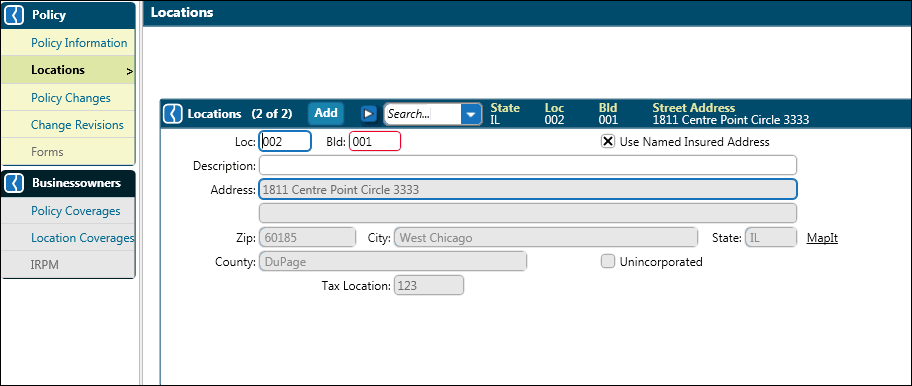
An alternate method to adding a location exists on the Location Coverages screen of Package and BOP products and the State Information screen in the Workers Compensation product.
To add a location from the Location Coverages screen:
1. Click the Add button in the window header to open a new location instance.
2. Complete the location data.
