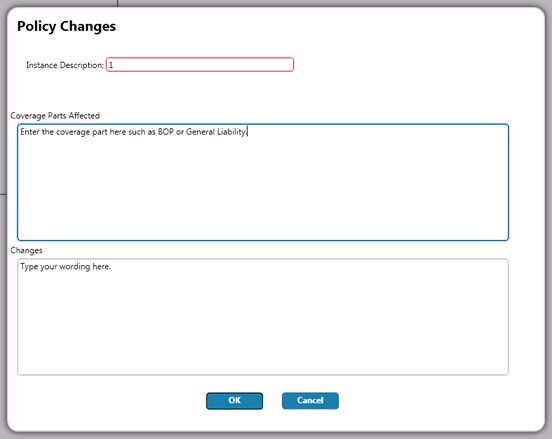
In the Policy menu, click Policy Changes. The Policy Changes screen contains two options: Other Policy Changes and Transaction Changes. Both options are displayed in a list.
Other Policy Changes offers the selection of applicable Policy Changes forms to be added to the policy for purposes of manually adding specific wording to a policy. This can be done at policy issuance or during subsequent transactions.
To add a Policy Changes form on the Policy Changes tab:
1. Select Other Policy Changes from the list.
2. Select the desired form.
3. Complete the fields as needed.
4. Rate.
5. Go to Forms.
The Transaction Changes tab is available for Endorsement, Cancellation and Reinstatement transactions.
Many changes will produce the appropriate endorsement form automatically. When a change to a policy is considered a ‘tracked change’, the system will automatically generate the appropriate Policy Changes form with wording describing the change. A tracked change is considered any of the following:
1. Endorsement of most items printed on the Policy Declarations
2. Cancellation transactions
3. Policy Reinstatements
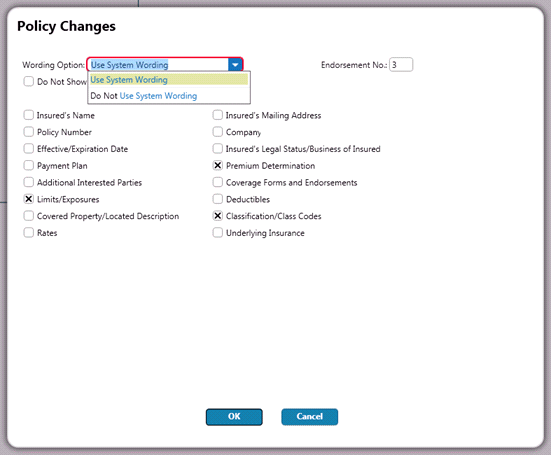
System generated Transaction Change instances can be opened by clicking on the Additional Information button. Opening an instance allows a user to:
1. Use System Wording (default)
2. Select “Do Not Use System Wording” under Wording Option
3. Change the Endorsement Number
4. Elect to remove AP/RP information from showing on the Policy Changes form
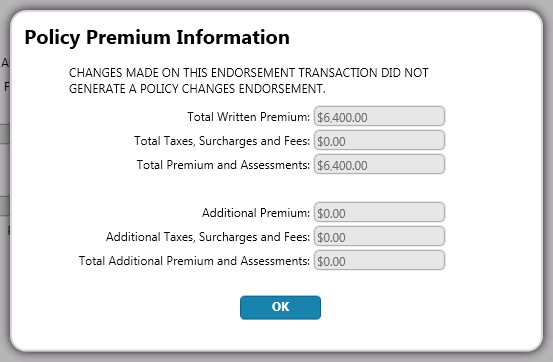
Some changes will not automatically generate a Policy Changes form. In these instances, a message appears notifying the user and a form must be added manually to document the changes made.
To add a Policy Changes form on the Transaction Changes tab:
1. Go to the Policy Changes screen shown under the Policy menu.
2. Select the desired form from the list.
3. Complete the fields in the dialog box. Note: the system will automatically generate the endorsement number.
4. Click Rate and OK.
5. Go
to Forms.
For a full description of the automated endorsement process, see Canned Word Endorsements.